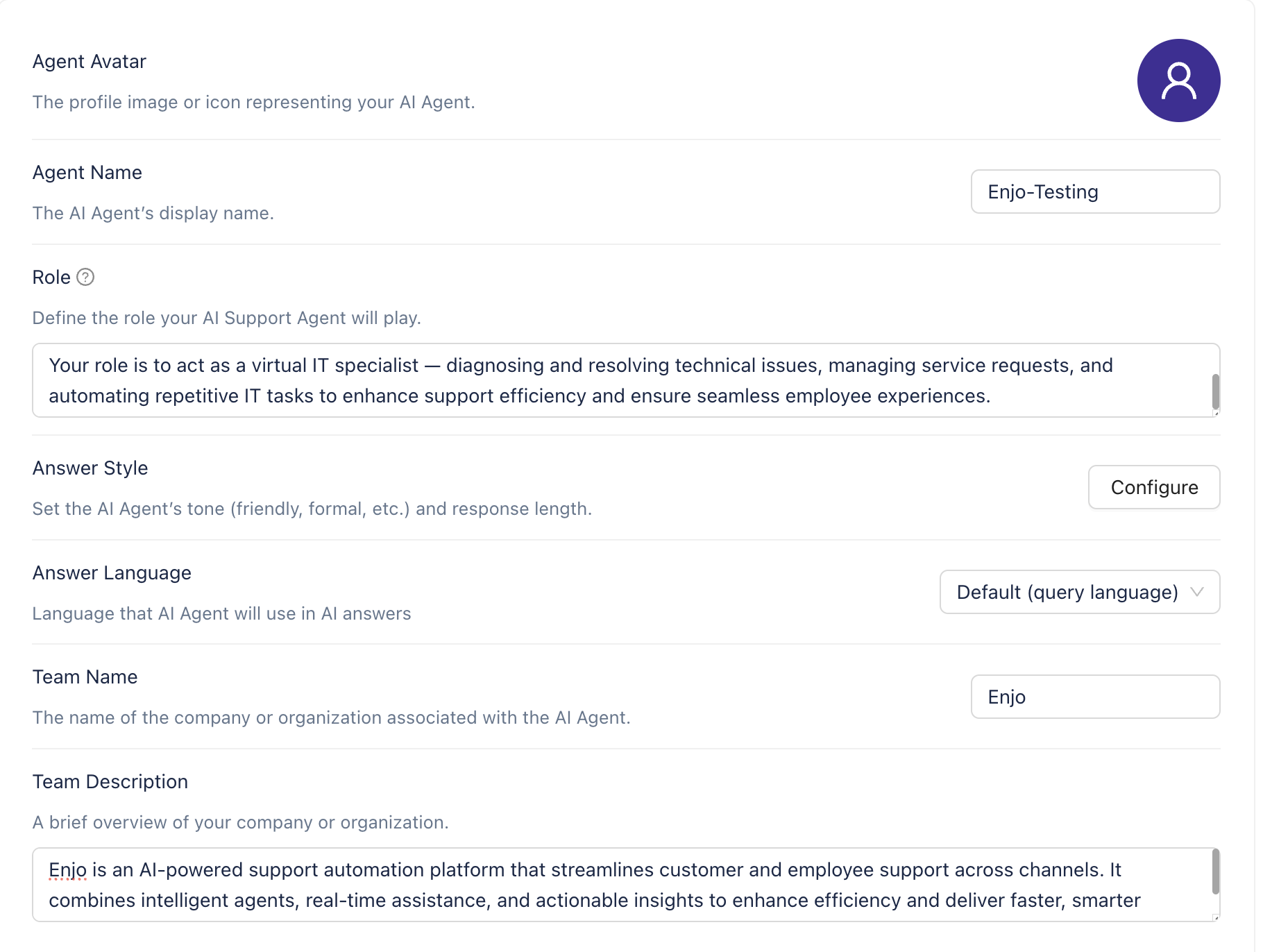
In this article, you'll learn how to configure the Persona settings for your AI Agent including its avatar, name, role, answer style, and team information.
Prerequisites
You need Owner, Admin, or AI Agent Admin role in Enjo.
Upload a .png or .jpg image to represent the agent across Slack, Teams, web chat, and other channels. Recommended size: 512 × 512 px.
Agent Name
The name shown to users in conversations. Use something friendly, descriptive, or brand-aligned — for example, HelpBot, HR Assistant, or Support AI.
Role
A one-sentence description of the agent's responsibility. This guides the AI's response style and scope. For example: "You are a support agent. Your job is to help users resolve their issues as efficiently as possible."
Answer Style — Tone
How the agent communicates. Choose from Friendly, Professional, or Neutral.
Answer Style — Length
How detailed responses are. Choose from Concise or Detailed.
Team Name
The department or group the agent represents — for example, IT Operations or Finance Helpdesk.
Team Description
A short description of the team behind the AI. For example: "We are the internal IT support team, helping employees with tools, access, and troubleshooting."
💡 The Role field has the most influence on how the AI Agent responds. Write it clearly and specifically — a well-defined role reduces off-topic responses and keeps the agent focused on its intended purpose.
💡 The Agent Avatar and Name appear in every conversation across all connected channels. Use an avatar and name that match your organisation's brand to build user trust and recognition.
.png)