.png)
Bulk Testing
In this article, you'll learn how to use Bulk Testing to validate your AI Agent's responses at scale including adding questions, running tests, reviewing results, and training your agent based on test output.
Prerequisites
Active Enjo workspace with at least one configured AI Agent
Access to AI Agent Studio
Permissions to Manage the AI Agent.
Step 1 — Open Bulk Testing
Go to AI Agents and select the agent you want to test.
Click the Bulk Testing tab.
Step 2 — Add questions
Choose one of two methods to add questions to your test batch.
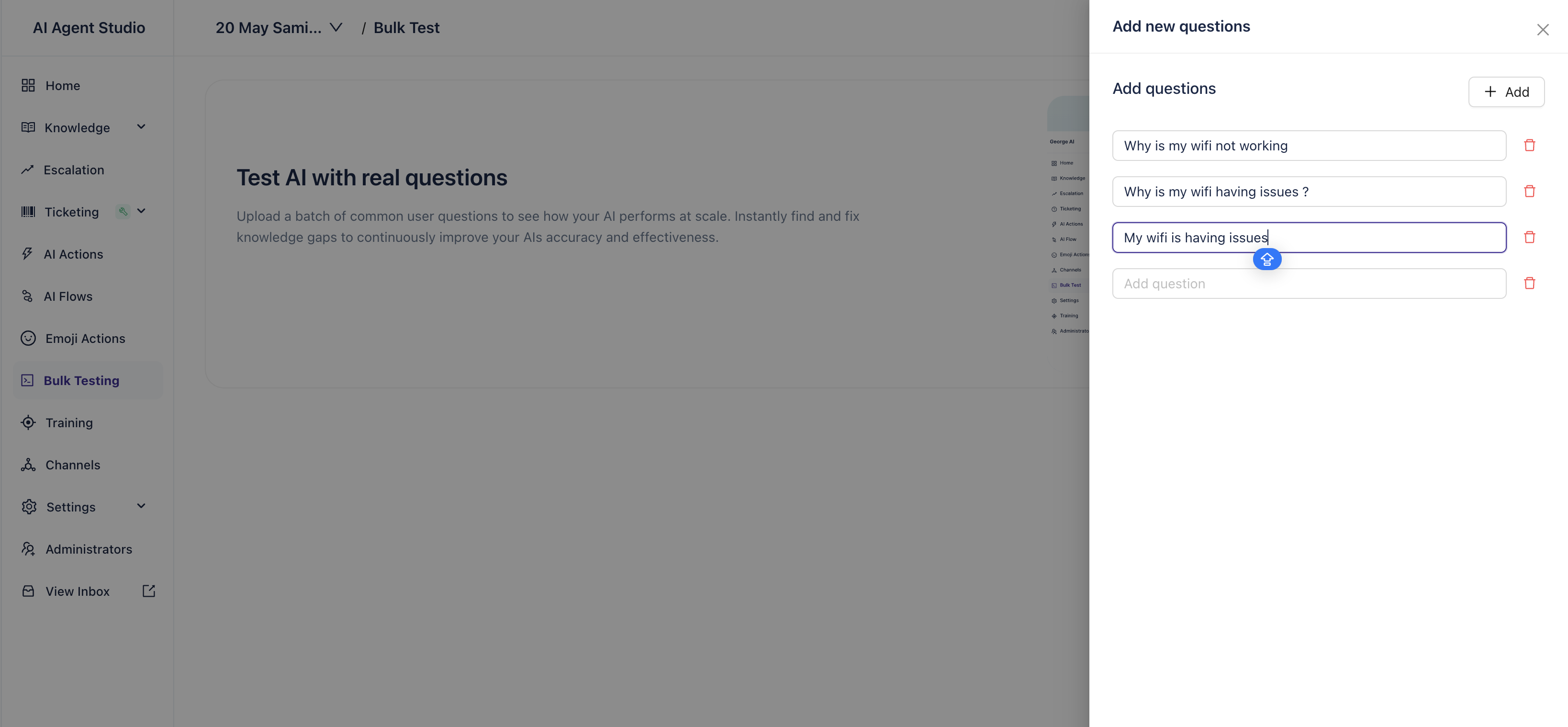
Option A — Manual entry
Click Add Questions Manually.
Enter up to 20 questions per input session.
Click Add to append them to the test list.
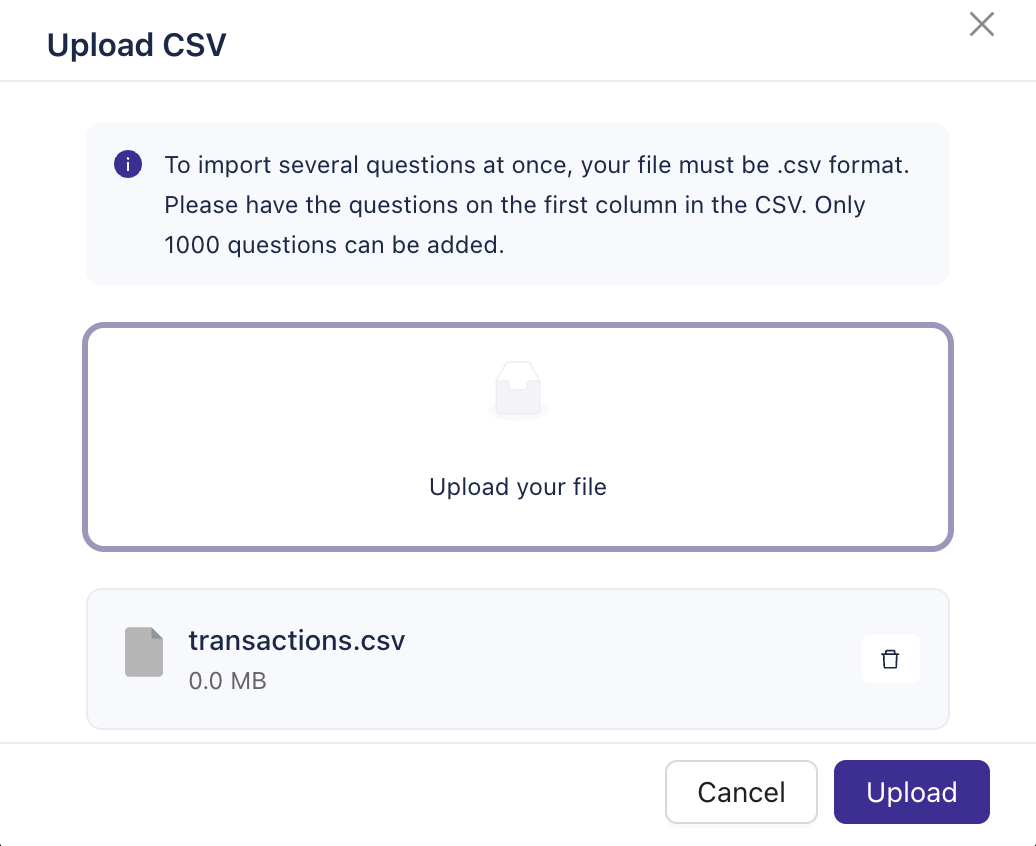
Option B: CSV Upload
Click Upload CSV File
Upload a file with one column of questions
The system parses and adds valid entries to the batch
Maximum combined limit (manual + CSV): 1000 questions
Error displays if the limit is exceeded
Step 3: Run the Test
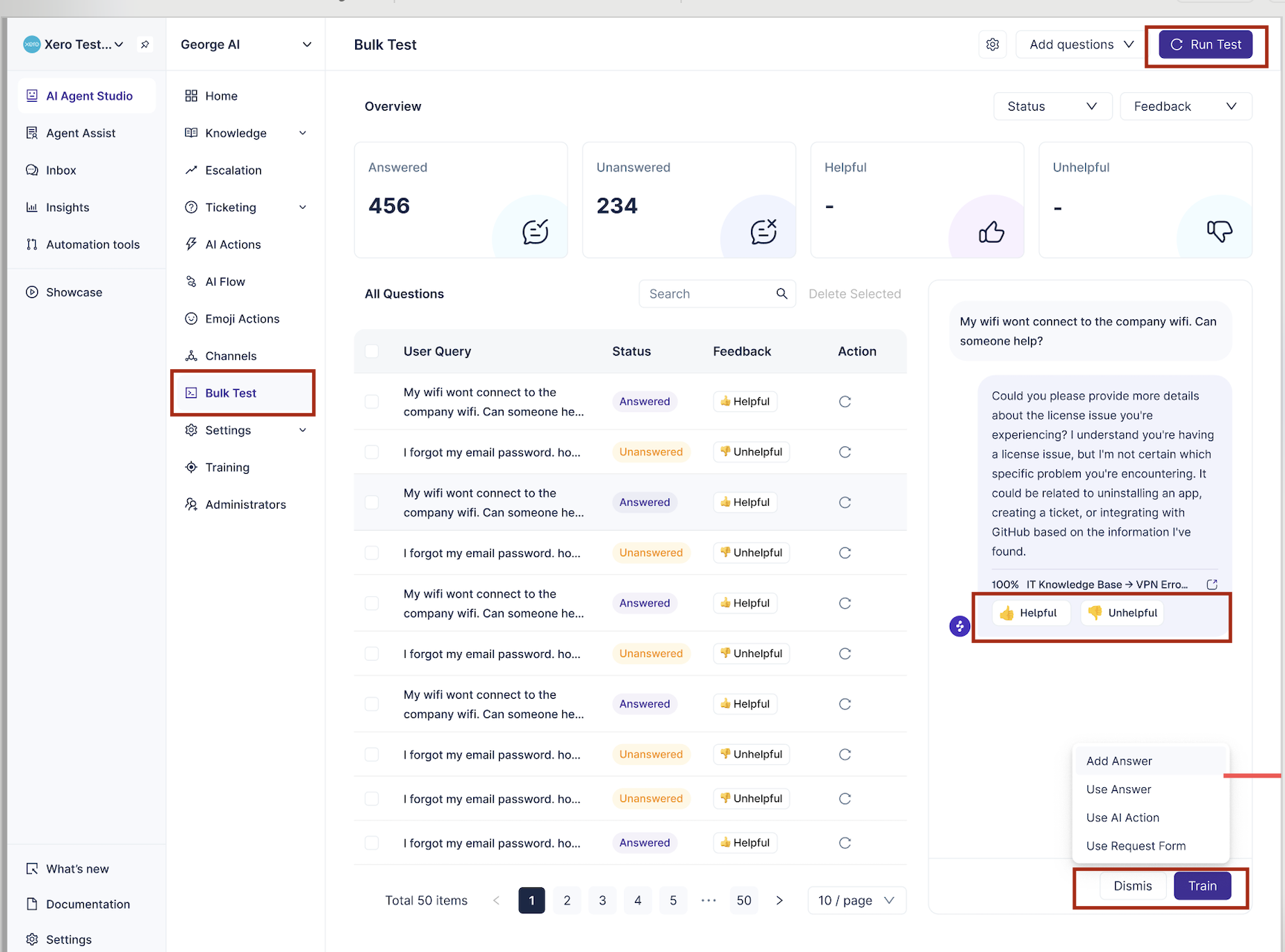
After adding questions, click Run Test
Enjo processes inputs and generates responses
Step 4: Review Test Results
Results appear in a table with the following columns:
Column | Description |
|---|---|
User Query | Input question |
Status | Answered / Unanswered |
Feedback | User rating: Helpful / Not Helpful / Not Rated |
Actions and Controls
Re-run Test: Re-execute for all or only unanswered questions
Rate Response: Mark as Helpful / Not Helpful
View Details: Expand to see full AI response
Train AI Agent: Add Answer, Use Existing Answer, or Apply AI Action
Dismiss Query: Remove from queue
Best Practices
Use CSV upload for batches over 100 questions
Rate responses promptly to improve training suggestions
Re-run tests after knowledge updates or training actions
Limitations
Max 1000 questions per batch
Only one active test batch per AI Agent at a time