.png)
Training
In this article, you'll learn how to train your AI Agent using real conversations from your workspace to improve response accuracy and coverage.
Before you start
You must be an Owner or Admin in your Enjo workspace
Your AI Agent must have received conversations to review
Allow 5–10 minutes to train 3–5 conversations
How it works
The Training feature allows AI Agent administrators to enhance the performance of their AI Agents by refining responses to past user interactions. The Training page displays all past unanswered conversations in one place with tools to take action on them. By analyzing these interactions and applying training actions, you improve your AI Agent's ability to handle similar questions in the future.
Access the Training page
Go to AI Agents > [Your Agent Name] > Training.
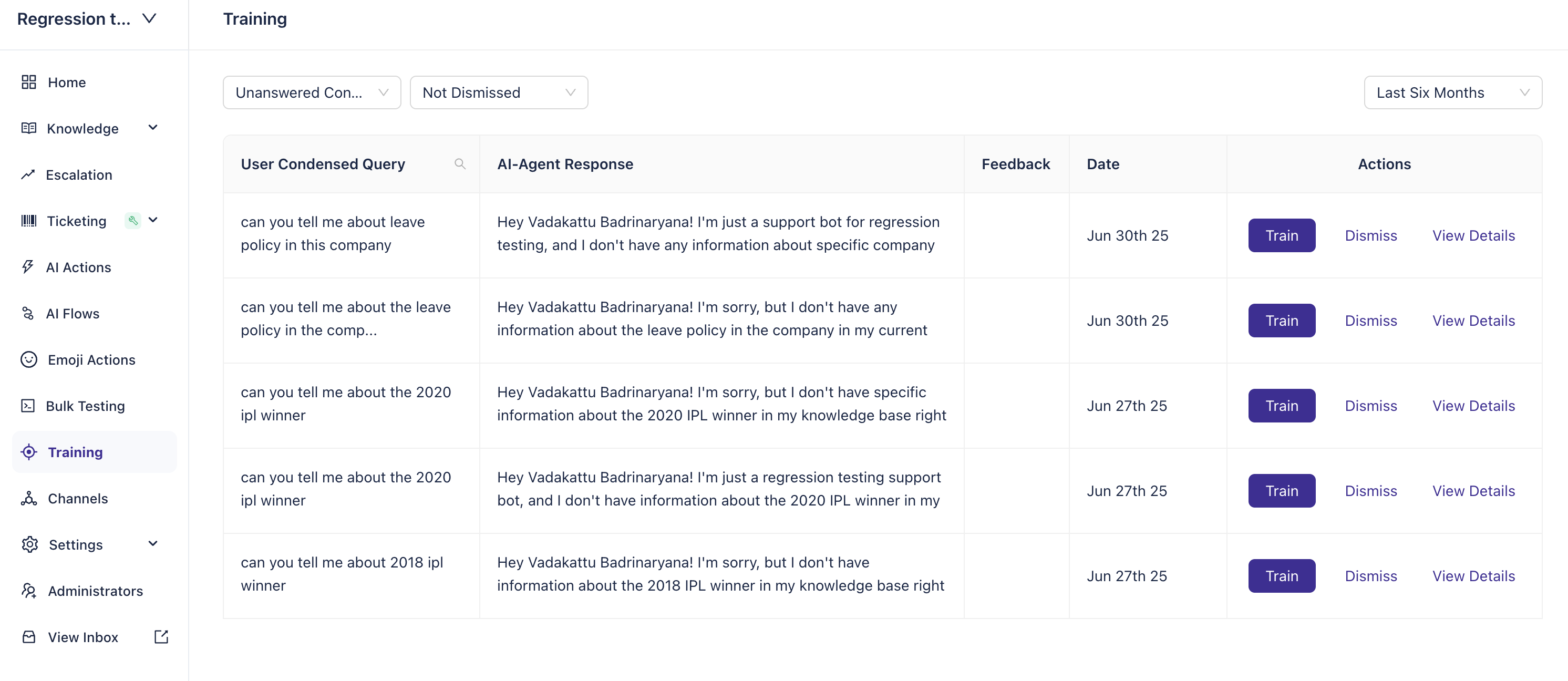
The Training page opens and displays a table of all past user interactions.
Review conversations in the table
The Training table shows past interactions with these key fields:
Field | What it shows |
|---|---|
Date | The date the interaction occurred |
User Condensed Query | The AI Agent's interpreted version of the query based on context |
AI Agent Response | The response the AI Agent provided |
Training Actions | Available options to refine the AI Agent's response |
View conversation details
To see the complete context of a conversation:
Click More for any conversation in the table.
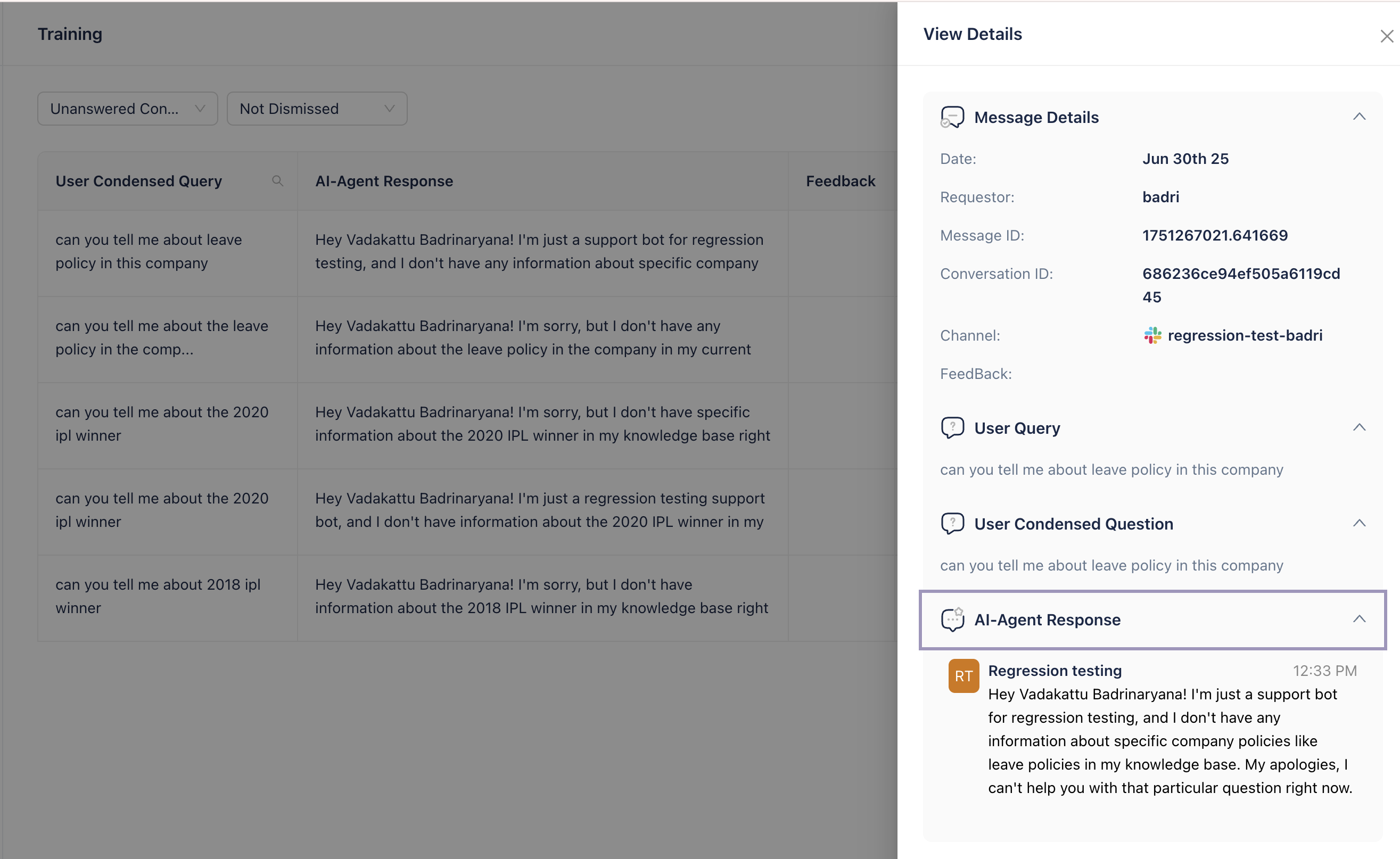
The detail panel shows:
Message Details — Metadata about the message
Attachments — Any files associated with the query
Generated Query — How the AI Agent interpreted the user's input
Original Query — The user's actual message
Standalone Query — The AI Agent's context-free interpretation
AI Agent Response — The initial response provided
Training Actions — All available improvement options
Take training actions
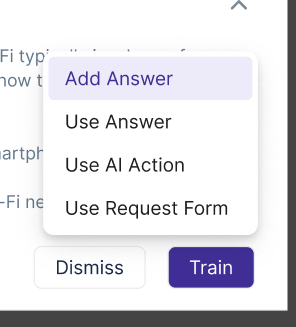
Select one of four actions to refine your AI Agent's responses:
Add Answer
Add the query and response as a new standalone entry in Enjo Answers.
Click Add Answer in the Training Actions column.
In the Add Answer panel:
Answer Type — Choose "Question-Based" or "Topic-Based"
Primary Question — The AI Agent's condensed interpretation of the query. Edit for clarity if needed.
Answer — The AI Agent's response. Edit, expand, or correct as needed.
Question Variations — Add alternative phrasings that should trigger this answer.
Click Done.
The new answer is saved to Enjo Answers (your internal knowledge base). The AI Agent will now recognize similar future questions and use this answer.
ℹ️ Note: Enjo Answers is your internal knowledge base used to train the AI Agent. This is distinct from Help Center articles, which are customer-facing self-service content.
Use Answer
Link the query to an existing answer by adding it as a question variation.
Click Use Answer in the Training Actions column.
In the panel:
Select Answer — Choose an existing Enjo Answer from the dropdown.
Click Done or Update.
The user's query is added as a question variation to that answer. The AI Agent will now recognize similar phrasings and use this answer more reliably.
💡 Tip: Use this method to improve question-matching accuracy without creating duplicate answers.
Use AI Action
Associate the query with a predefined AI Action for automated workflows.
Click Use AI Action in the Training Actions column.
In the panel:
Select AI Action — Choose an existing AI Action from the dropdown.
Click OK.
The query is now associated with this AI Action. When the AI Agent encounters similar questions in the future, it will automatically trigger this action.
ℹ️ Note: AI Actions are real-time system operations (creating tickets, querying databases, provisioning access). They are different from Answer training, which creates static Q&A knowledge.
Use Request Form
Map the query to an existing request form for structured responses.
Click Use Request Form in the Training Actions column.
In the panel:
Select Request Form — Choose an existing request form from the dropdown (configured in your ticketing integration like Jira, ServiceNow, etc.).
Click OK.
The query is mapped to this request form. When the AI Agent encounters similar requests in the future, it will auto-populate the form with extracted data, streamlining escalation to humans.
Best practices
To maximize training impact on AI Agent performance:
Start with unanswered conversations — Focus on queries the AI Agent couldn't answer to expand coverage.
Create answers for new patterns — When you see a repeating question the AI Agent didn't handle, create a new answer rather than just adding variations.
Add strategic variations — Include 3–5 question variations per answer to help the AI Agent recognize how users actually phrase questions.
Apply AI Actions consistently — Link similar requests to the same AI Action to ensure consistent automation.
Review training regularly — Periodically check your Enjo Answers and AI Actions to ensure they remain accurate and relevant.
Test before deployment — Use Bulk Testing to validate that your trained answers and actions work as expected before relying on them in production.
What's next
Enjo Answers — Manage your knowledge base of trained Q&A pairs
AI Actions — Set up and configure system integrations for the AI Agent to execute
Bulk Testing — Test your trained AI Agent at scale before production deployment
AI Agent Performance Insights — Track improvements in AI resolution and accuracy over time
Guardrails — Set safety policies and compliance rules for AI Agent responses