.png)
Notifications
In this article, you will learn how to configure your notification settings for Email, Teams, Slack, Jira, and Inbox in Enjo.
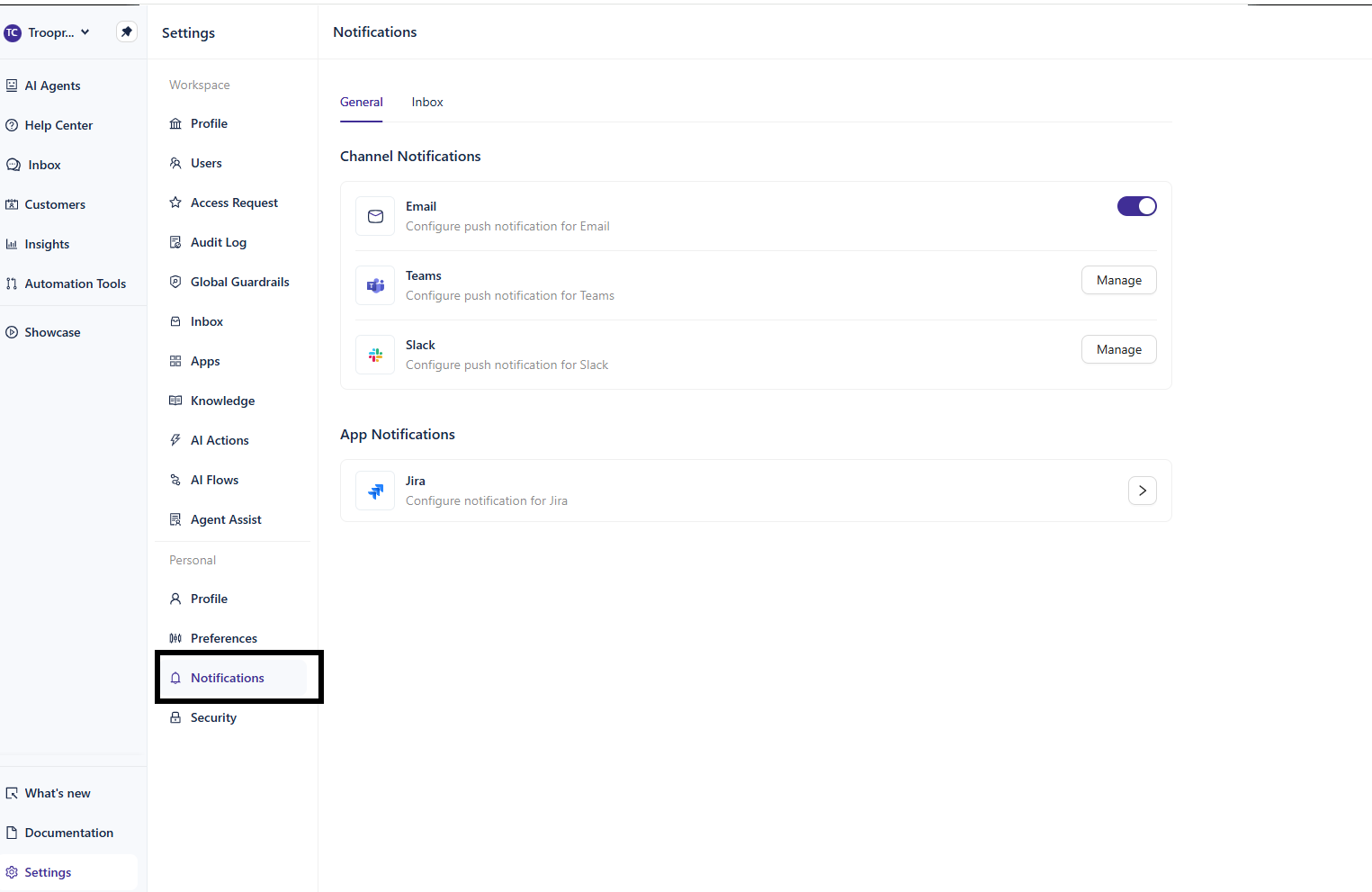
To access Notifications, navigate to Settings → Notifications in the Enjo Dashboard.
General
Navigate to Notifications → General.
To set up notifications using Email , follow these steps:
Email
Enable or disable email notifications for your account.
Under Channel Notifications, locate Email.
Toggle it on to enable email notifications or off to disable them.
💡 Tip: Email notifications are enabled by default. Disable this if you prefer to receive notifications through Slack or Teams only.
Microsoft Teams
Configure push notifications through Microsoft Teams.
Under Channel Notifications, locate Teams.
Click Manage.
Enable notifications and select the appropriate Team Tenant.
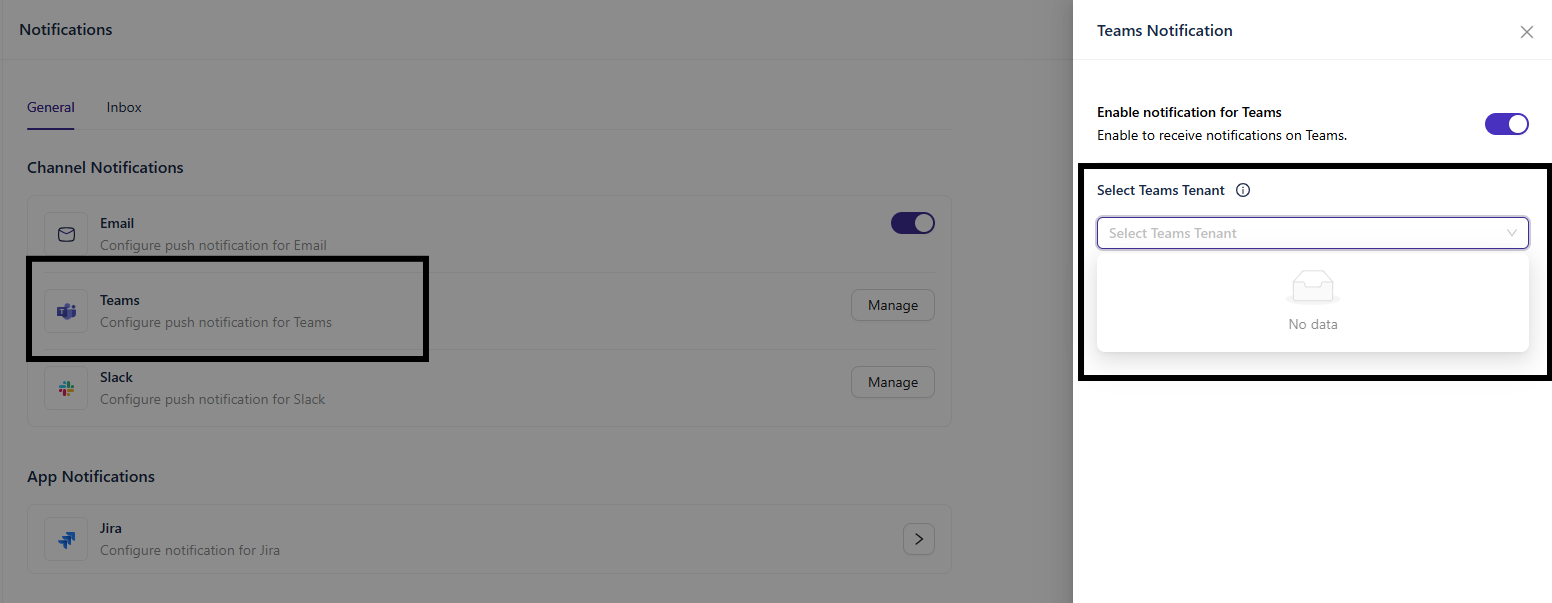
💡 Tip: You will need an active Microsoft Teams integration connected to your Enjo workspace before configuring Teams notifications. See Connect Microsoft Teams.
Slack
Configure push notifications through Slack.
Under Channel Notifications, locate Slack.
Click Manage.
Enable notifications and choose your preferred Slack account from the available options.
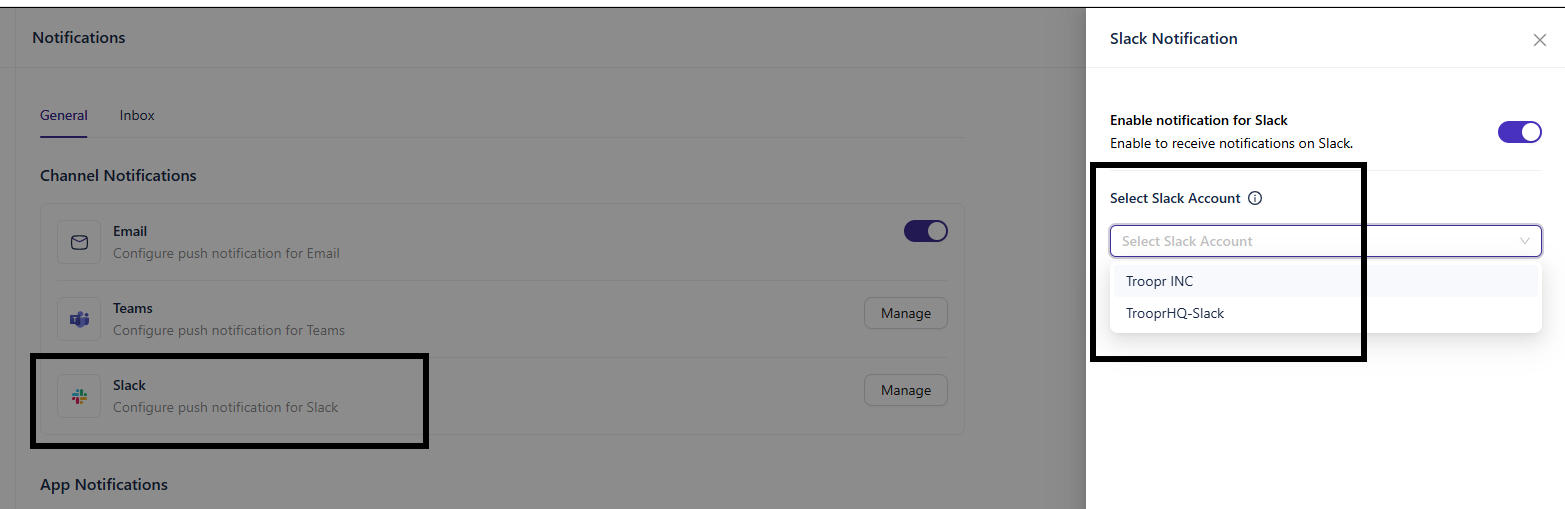
💡 Tip: If you have multiple Slack accounts connected, select the one your team uses most frequently for support activity.
Jira
Configure notifications for Jira activity.
Under App Notifications, locate Jira.
Click the arrow to open Jira notification settings.
Configure your preferred notification options.
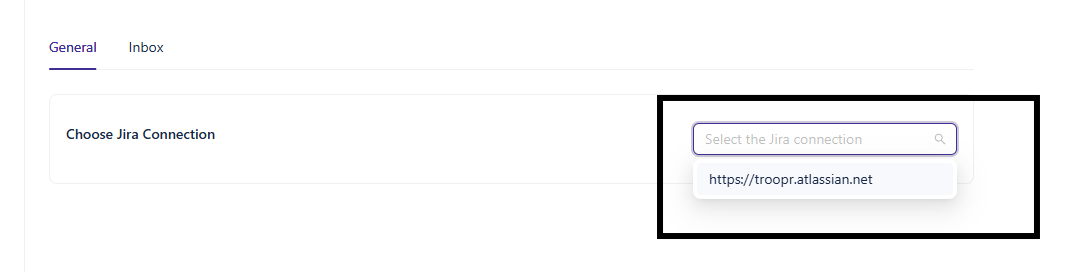
💡 Tip: Jira notifications are separate from Channel Notifications. They are scoped to activity within your connected Jira instance.
Inbox
Navigate to Settings → Notifications → Inbox.
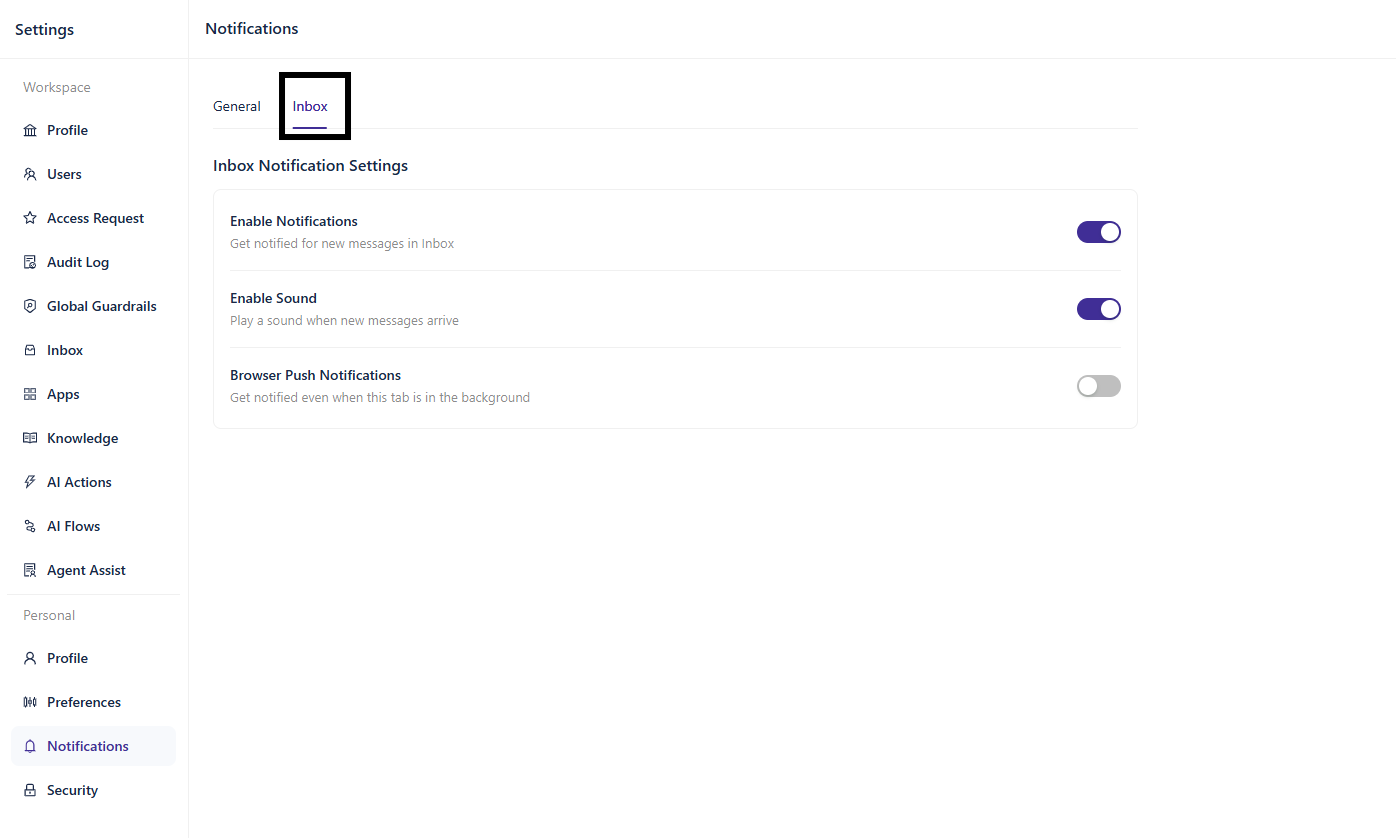
Enable Notifications
Toggle on Enable Notifications to get notified when new messages arrive in your Inbox.
💡 Tip: This setting must be enabled for Enable Sound and Browser Push Notifications to work.
Enable Sound
Toggle on Enable Sound to play a sound when new messages arrive in your Inbox.
Browser Push Notifications
Toggle on Browser Push Notifications to receive notifications even when the Enjo tab is in the background.
💡 Tip: Your browser will prompt you to allow notifications the first time you enable this setting. Make sure to click Allow in the browser prompt for push notifications to work.
What's next
Profile— update your profile picture and workspace name.
Preferences — configure your display theme and Inbox translation settings.