.png)
Create Router AI Agent
In this article, you'll learn how to create a Router AI Agent, add child AI Agents, deploy it to a channel, and test routing behavior
How routing works?
A Router AI Agent receives incoming requests and determines which child AI Agent should handle them, based on the description and sample requests you configure for each child. For example, a request about a password reset routes to an IT AI Agent while a request about leave policy routes to an HR AI Agent.
💡 The more distinct and representative your sample requests are per child agent, the more accurately the Router AI Agent will route incoming requests.
Before you start
You need Owner, Admin, or AI Agent Admin role in Enjo.
At least one specialized AI Agent must already be created and available in your workspace.
You need permissions to deploy AI Agents to target channels.
Setup overview
Setting up a Router AI Agent involves four steps:
Create the Router AI Agent
Add child AI Agents
Deploy to a channel
Test in the channel
1. Create Router AI Agent
Log in to the Enjo dashboard.
Go to AI Agents.
Click + New AI Agent.
Select + New Router AI Agent from the dropdown.
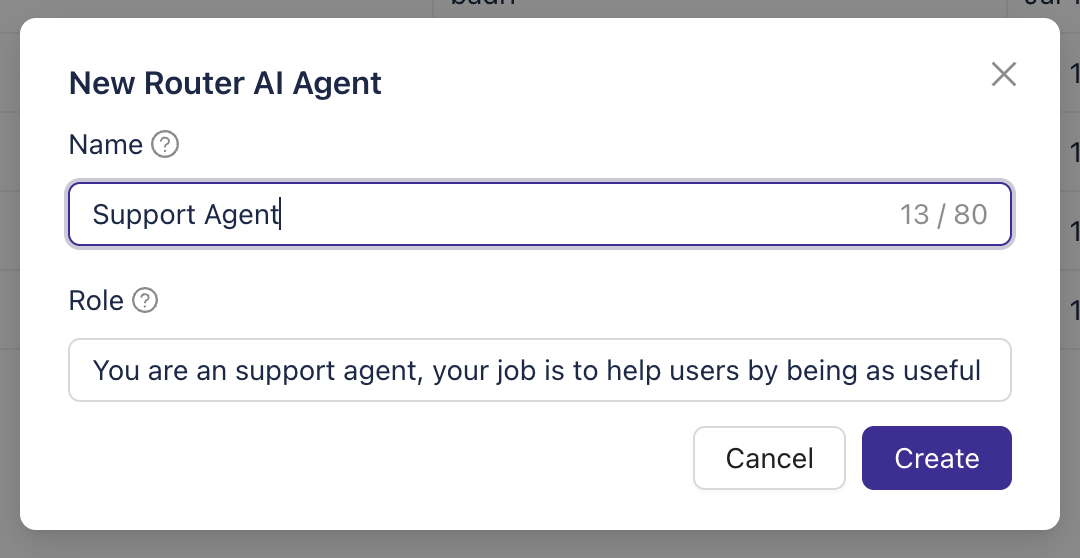
Enter a name and description for the Router AI Agent.
Click Create.
Step 2 — Add child AI Agents
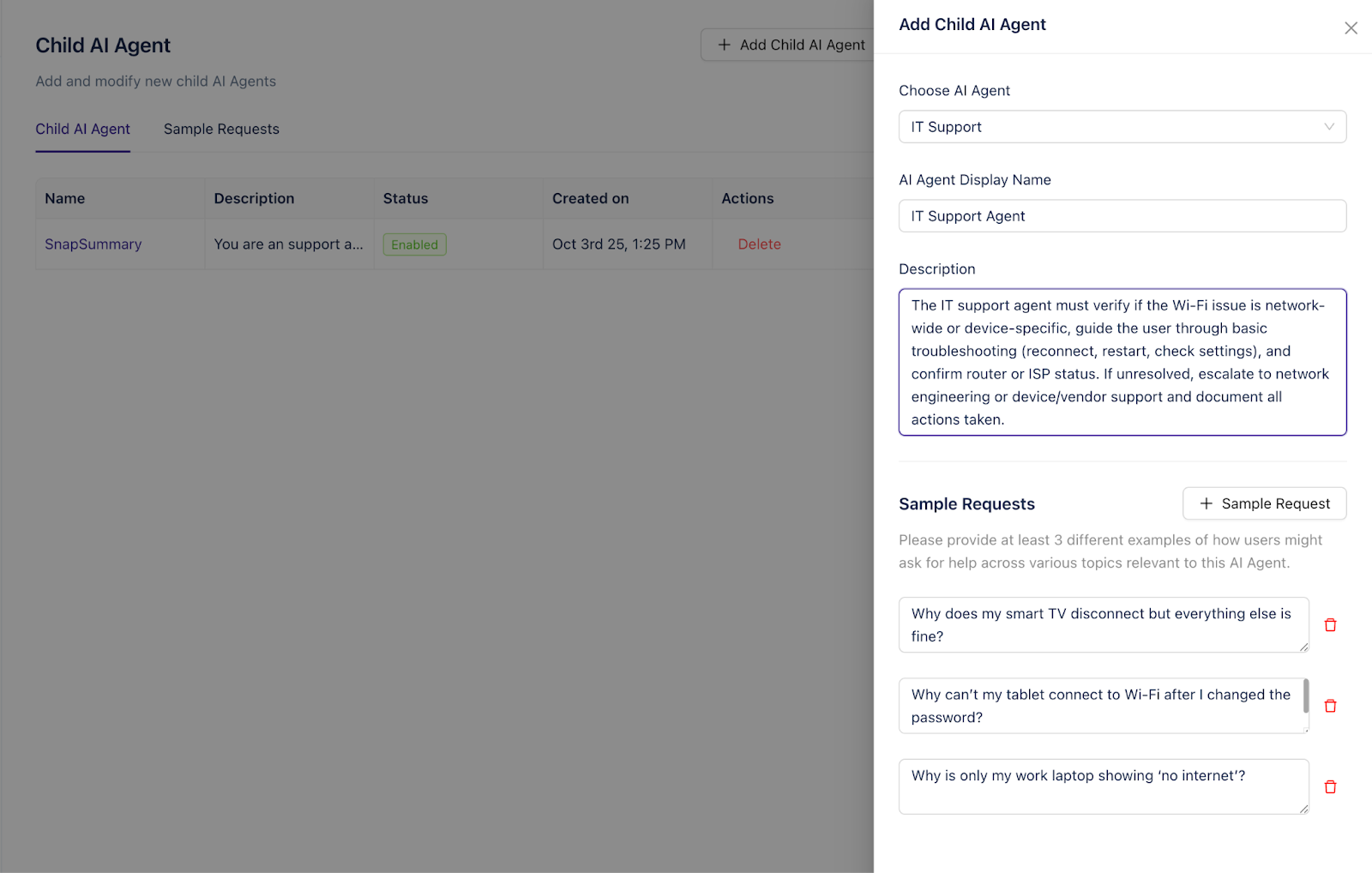
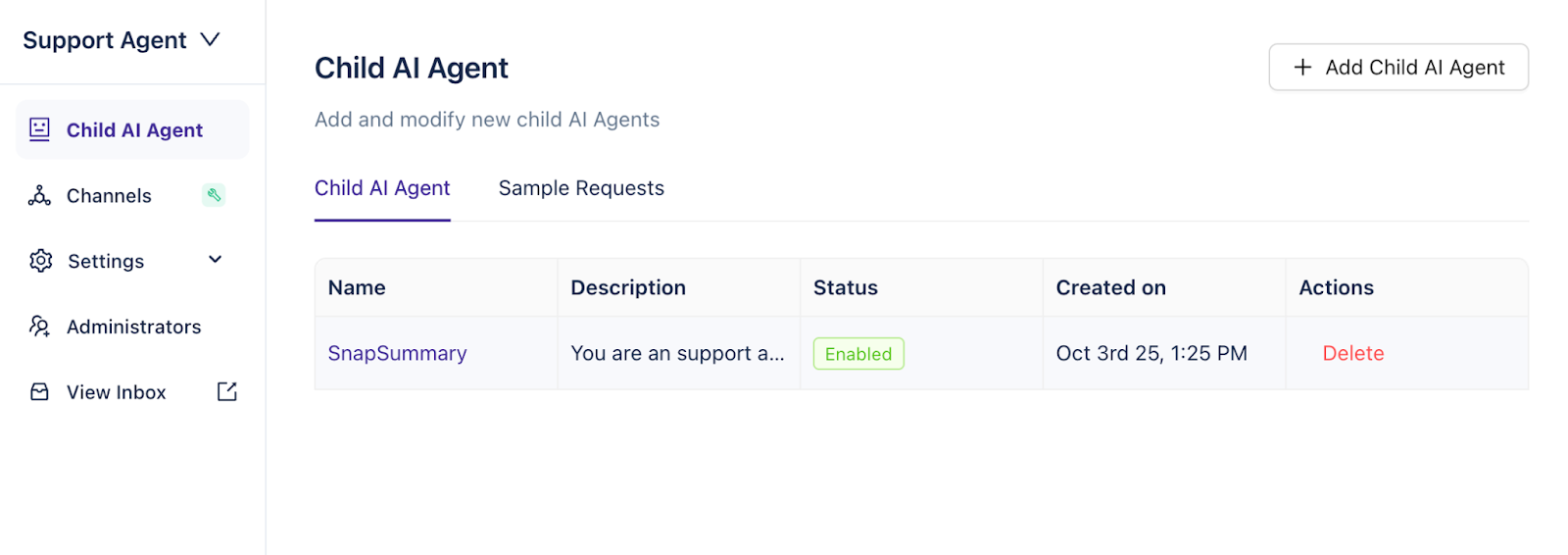
On the Router AI Agent configuration page, click Add AI Agent in the top right corner.
Select an existing AI Agent from the dropdown.
Enter a Display Name — this is visible to end users.
Add a Description of the child AI Agent's scope and responsibilities. Be specific — this helps the Router determine when to route to this agent.
Enter at least 3 unique sample requests that represent typical queries this agent should handle. Sample requests should be distinct from those of other child agents.
Click Save.
7. Repeat steps 1 through 6 for each additional child AI Agent.
💡 Avoid overlapping sample requests between child agents. If two agents have similar samples, the Router may misclassify requests between them.
Step 3 — Deploy to a channel
Deploy your Router AI Agent to a channel the same way you would any other AI Agent. See Connect Channels for supported channels and deployment steps.
💡 The Router AI Agent replaces individual child agents in the channel. End users interact only with the Router — routing to child agents happens automatically in the background.
Step 4 — Test in the channel
Open the channel where the Router AI Agent is deployed.
Submit test queries that represent each child AI Agent's scope.
Verify that each request is directed to the correct child AI Agent.
💡 If a request is routed to the wrong agent, review the sample requests for both agents involved. Add more distinct samples to the correct agent and remove or reword any that overlap with others.
What happens when no child agent matches
If the Router AI Agent cannot determine which child agent should handle a request, it escalates according to the escalation rules configured on the Router AI Agent itself. See Escalation Settings.
Best Practices
Provide clear, distinct sample requests for each child AI Agent to improve routing accuracy.
Ensure there is minimal overlap in sample queries between agents to avoid misclassification.
Regularly review and update child AI Agents as organizational needs evolve.
What's next
Connect Channels — Deploy your Router AI Agent to Slack, Teams, or web chat.
Escalation Settings — Configure what happens when no child agent matches a request.